TABLE OF CONTENTS
- Quick overview — the building blocks
- Choosing a layout
- Widget categories and sub-categories
- How to customize your profile — step-by-step
- Configuration examples
- Design & content tips
- Troubleshooting & FAQ
- Coming soon (what to expect next)
Meet your new customizable profile — everything you can do (and how to do it)
We’re rolling out a fresh, modular profile page on Medal — built so your page looks exactly the way you want. It’s made from rows of flexible widgets that you place, arrange and configure. Below is a detailed walkthrough of what’s possible, how to set it up, and ideas for making your profile useful and beautiful.
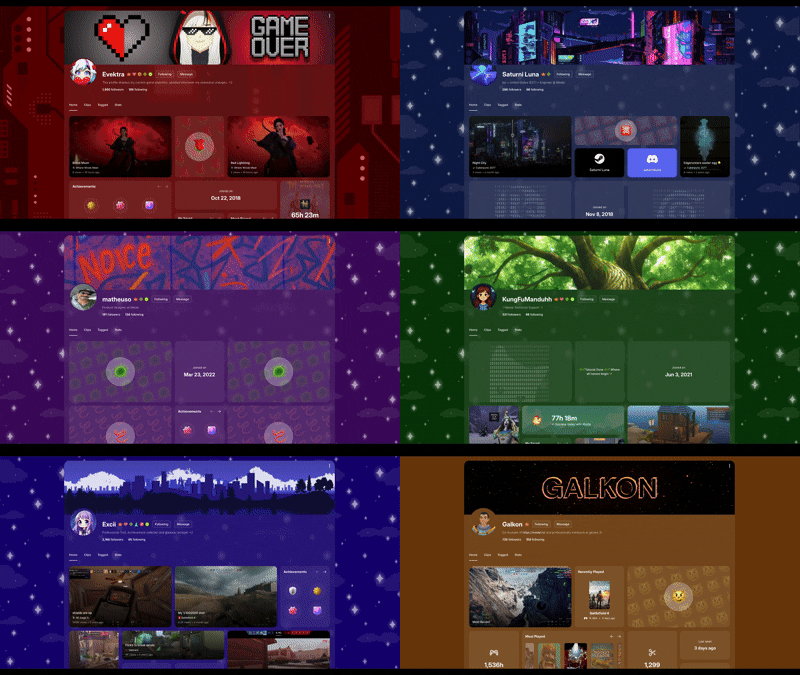
Quick overview — the building blocks
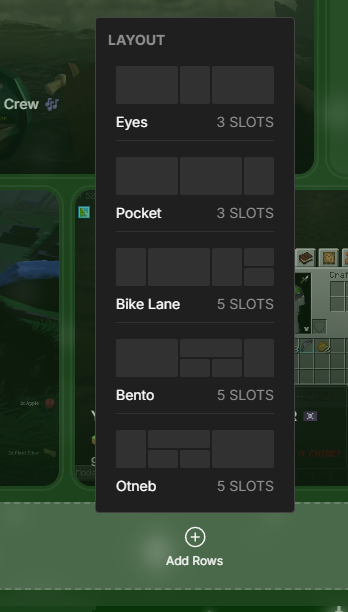
Layouts (overall page arrangement): decide the structure of your profile (how many rows, how widgets are grouped, and the general visual rhythm). Available choices: Eyes, Pocket, Bike Lane, Bento, Otneb.
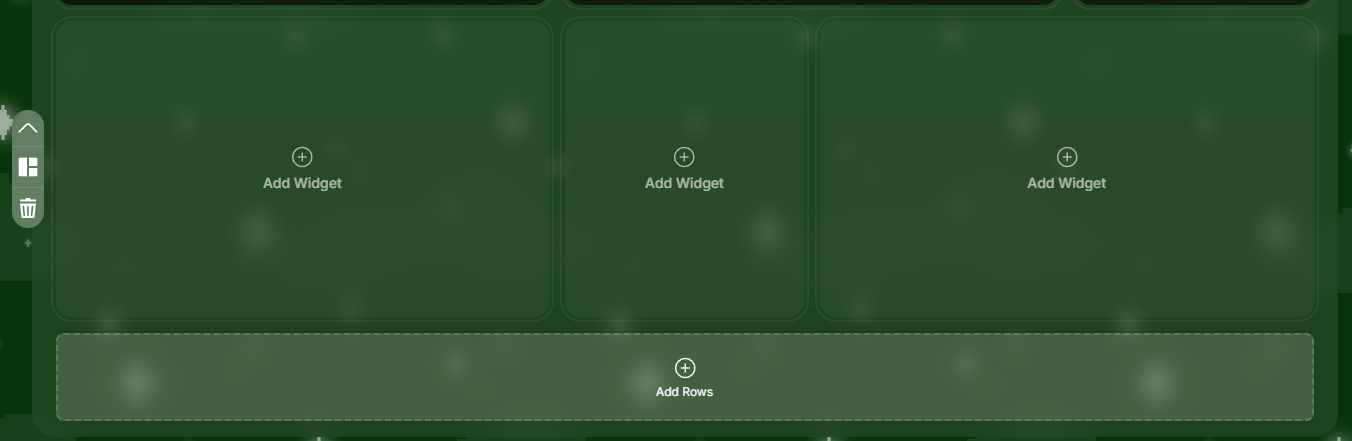
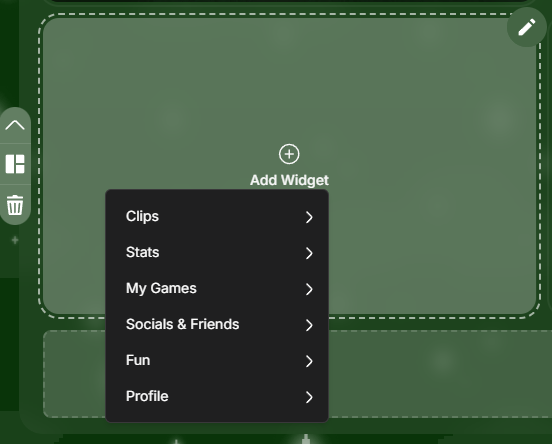
Widgets: the pieces you place inside a layout. Each widget belongs to a main category and may offer several sub-categories or display modes.
Main categories available for widgets:
Clips, Playlists, Stats, My Games, Socials & Friends, Fun, Profile. (We’ll be adding more categories over time.)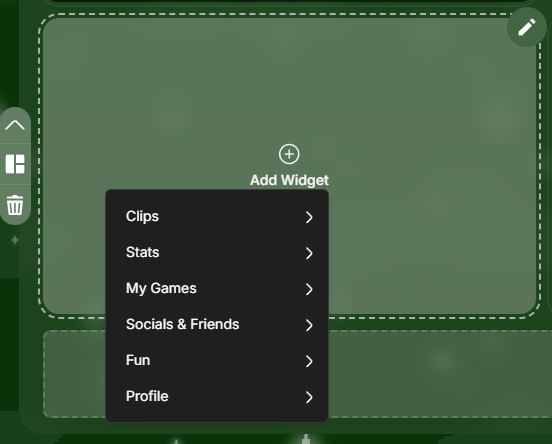
Choosing a layout
Your layout decides the structure of your profile — how many widgets you can display and how they’re arranged on the page. Each layout gives your profile a different look and feel, and you can switch between them anytime in the editor.
Eyes — 3 Widget slots
Pocket — 3 Widge tslots
Bike Lane — 5 Widget slots
Bento — 5 Widget slots
Otneb — 5 Widget slots
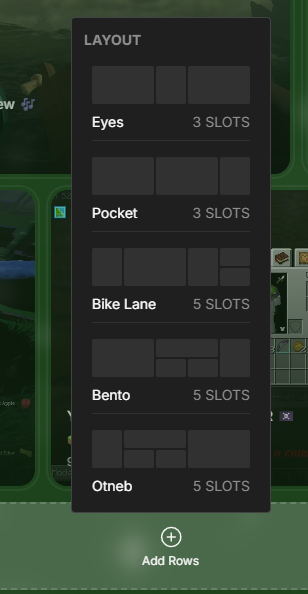
Tip: Try each layout with your current widgets — rearranging can instantly change the mood of your page. Use Bento or Eyes if you want a polished, streamer-ready look; Pocket and Eyes are great for minimalists!
Widget categories and sub-categories
Below are the main categories and their available sub-categories. When you add a widget, you can choose from the options available below:
Clips
Single clip — highlights one clip of your choice ;)
Playlists
Pinned clips — displays all the pinned clips on your profile (only up to 3 videos!)
Most recent posts — auto-updates with your newest uploads.
Most watched — shows your most viewed clips that you got.
Custom Playlist (Coming soon!) — manually create a playlist for your favorite videos!
Stats
Total playtime — show cumulative hours played with Medal active.
Total clip count — displays how often you have clipped with Medal.
Featured game stats — highlight stats for a particular game of your choice!
My Games
Recently played — auto-updates with games you played most recently.
Most played — shows which games you’ve spent the most time in.
My Roblox Avatar — shows your Roblox avatar (requires linked Roblox account).
If you need help connecting your Roblox account, please take a look at our article — https://support.medal.tv/support/solutions/articles/48001263806-how-to-connect-your-roblox-account-to-medal
Socials & Friends
My squad — show your close friends or squad tags (links to their Medal pages).
Featured socials — quick links to your other platforms (Discord, Steam, Twitch etc.).
All my socials — a bigger list of every connected social account you have. (you can set the visibility of your connected accounts under Medal's Settings > Connected Accounts)
Fun
Text card — add a short message, shoutout, motto or rules for visitors.
Emoji — time to show us your favorite emoji!
Profile
Achievements — badge panel showing your Medal achievements.
Last seen — show when you were last active.
Join date — displays the date you joined Medal.
How to customize your profile — step-by-step
Open Profile Editor
Go to your Profile Page (you can find it in the upper right corner of your Desktop app) and click on Edit Profile.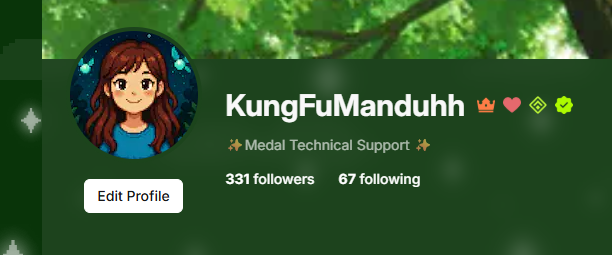
Pick a layout
In the layout section choose Eyes, Pocket, Bike Lane, Bento, or Otneb. Don't worry, if you change your mind, you can always edit the layout later!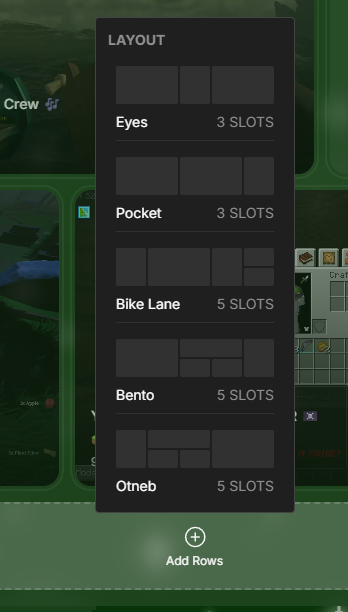
Add a widget
Click Add Widget and choose what you like the best.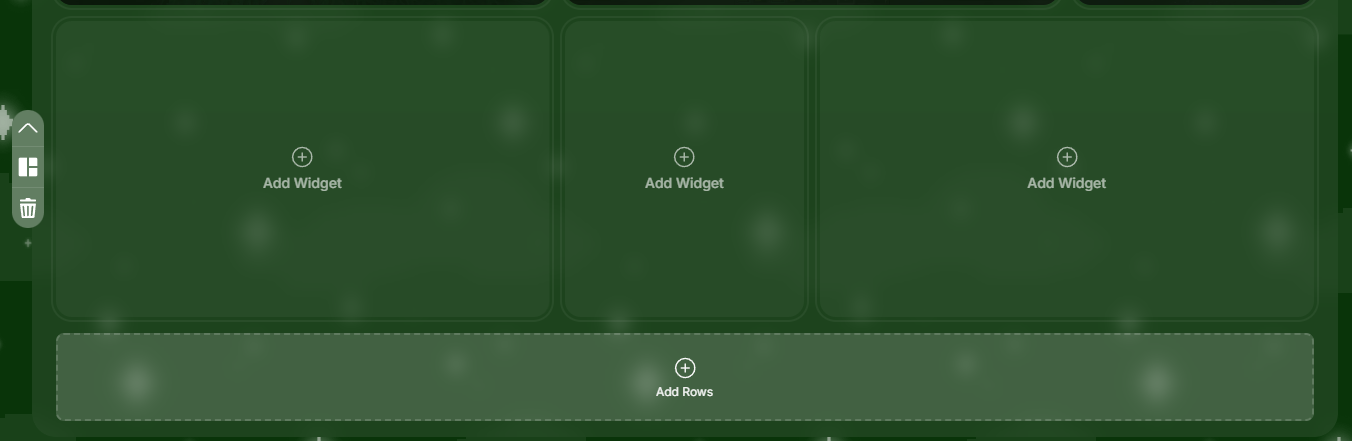
Configure the widget
For clips: pick the clip (Single clip) or choose auto-populated options (Most watched).
For playlists: choose pinned clips or auto playlists.
For stats/games: pick the specific game to feature.
For socials: select which social accounts to show off
Save & publish
After changes, click Save. Your public page updates instantly.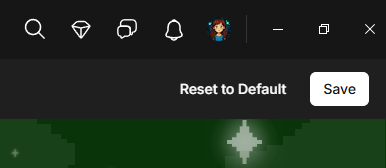
Configuration examples
For streamers / creators
Layout: Eyes or Bento.
Top row: Single clip (latest highlight) + Achievements widget.
Middle: Pinned clips (best plays) + Featured socials (Discord, Twitch, YouTube).
Right column: Stats (Total playtime, Total clip count)
For achievement collectors / collectors of moments
Layout: Pocket or Bento.
Show Achievements near the top, Most watched, and Most played games.
Use Text card to add collection notes or rules for clip use.
For communities / friend-heavy pages
Layout: Bike Lane or Otneb (more space for friend/social cards).
Add My squad, All my socials, and a Pinned clips playlist for community highlights.
Design & content tips
Hero clip vs many small clips: a single large clip creates a strong focal point; multiple small clips are better for browsing.
Use Featured Socials sparingly — keep it to the most important links (Discord, Twitch, Twitter). Too many links can clutter the page.
Keep text cards short — profile visitors skim; 1–2 sentences is ideal.
Prioritize what you want visitors to do (follow you, watch a highlight, join Discord) — put the most important widget near the top!
Troubleshooting & FAQ
Q: My Roblox avatar widget won’t show
A: Make sure your Roblox account is connected to Medal. Follow this guide to link Roblox: https://support.medal.tv/support/solutions/articles/48001263806-how-to-connect-your-roblox-account-to-medal
Q: Do changes publish immediately?
A: When you press Save your live profile updates — check visibility settings if it looks different publicly.
Q: Can I create my own custom widget?
A: Not yet, but we’re expanding widget types and will add more customization in future updates.
Coming soon (what to expect next)
Custom Playlists — create and name your own playlists and show them as nuggets.
Was this article helpful?
That’s Great!
Thank you for your feedback
Sorry! We couldn't be helpful
Thank you for your feedback
Feedback sent
We appreciate your effort and will try to fix the article